How to Convert an Image to Pixel Art
How to turn a photo or drawing into real pixel art, why automatic filters create mixels, and the honest workflow of downscaling, reducing the palette, and cleaning up by hand.
"Turn this photo into pixel art" sounds like a one-click job, and plenty of tools promise exactly that. The honest truth is that a one-click filter rarely produces real pixel art. This guide explains why, and shows the workflow that actually gives you a clean, editable sprite.
Want to just do it? Our free image to pixel art converter runs the whole first pass — box-average downscaling plus a proper reduction to 2–64 palette colors — right in your browser, with no upload and no sign-up. Convert there, then come back here for the hand-cleanup workflow that turns the result into a finished sprite.
Why one-click filters disappoint
A "pixelate" filter shrinks an image and blows it back up into chunky blocks. It looks pixel-ish from a distance, but up close you find:
- Hundreds of colors, because the filter averages neighbors instead of snapping to a palette.
- Mixels, where a single visual pixel straddles two grid cells, so the grid is not real.
- Mushy shapes, because a photo has detail and noise that does not survive at a low resolution.
Real pixel art is made of deliberate cells on a fixed grid with a locked palette. A filter cannot make those decisions for you.
The workflow that works
1. Downscale to a true size
Decide the final resolution first (see the pixel art sizes guide). Scale the source image down to roughly that size so you are working with a small number of cells, not a million.
2. Reduce to a small palette
Pick a tight palette (often 8 to 16 colors) and map the image onto it. Group colors into ramps per material so shadows and highlights stay coherent. This step is where a photo starts to look like art instead of a blurry thumbnail.
3. Redraw, do not trace
This is the part tools skip. Use the downscaled, palette-reduced image as a reference, then place pixels deliberately: clean the silhouette, fix the shapes the downscale mangled, and shade with a single light direction. You are using the image as a guide, not as the final pixels.
4. Clean the edges by hand
Soften harsh stair-steps with a single intermediate pixel where it helps, and leave the rest. Never auto-blur, or you reintroduce mixels.
A faster path: describe it instead
Often the real goal is "a sprite that looks like this," not a literal pixel-for-pixel copy. In that case, describing the subject gives a cleaner result than converting a photo. In SpriteGen you can type what you want ("a red dragon, 32x32") and the AI draws true pixel art directly on a real grid, on your palette, at an exact size. Then refine it by hand or ask for changes.
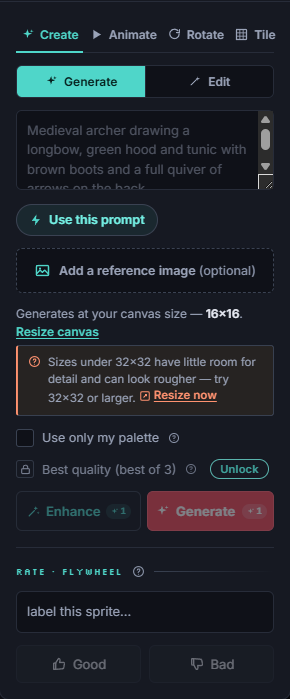
If you want to base a sprite on a specific image, SpriteGen also offers reference-image conditioning on paid plans, which guides generation toward your reference while still producing real, editable pixel art rather than a filtered photo.
The takeaway
Converting an image to pixel art is part downscale, part palette work, and mostly deliberate hand decisions. Tools can speed up the first steps, but real pixel art comes from a real grid. Open the editor and try describing your subject, then edit it pixel by pixel.
Make it in SpriteGen, truly free
Hand-draw on a real grid or generate sprites with AI. No sign-up needed to draw and export — a free account adds 10 AI credits a month.