How to Animate Pixel Art (Frame by Frame)
A practical guide to animating pixel art — planning motion, building a walk cycle, using onion skinning, timing frames, and exporting a clean loop as a GIF or spritesheet.
Animation looks like magic, but a pixel-art animation is just a handful of still frames shown in sequence on a loop. The skill is choosing the fewest frames that sell the motion, and keeping every frame on the same grid and palette so the loop reads cleanly. This guide walks through animating a sprite from a single pose to a finished, exportable loop.
1. An animation is frames on a timeline
A pixel-art animation is a stack of frames — each one a full sprite on the same fixed grid — played back at a set speed. Three or four frames is often enough for a convincing loop. More frames means smoother motion but more work, and at small sizes a few well-chosen frames usually beat a dozen mushy ones.
The golden rule: every frame shares the same dimensions and the same palette. If frame 2 drifts to 17×16 or sneaks in an off-palette color, the loop jitters and shimmers. A real grid-based tool enforces this for you — in SpriteGen each frame is the same document of palette indices, so the canvas can't change size underneath your animation.

2. Plan the motion before you draw
Don't animate blindly. Decide the key poses first — the extremes of the motion. For a jump that's the crouch, the launch, and the peak. For a sword swing it's wind-up, contact, and follow-through. Block those poses in roughly, get the timing feeling right, then fill in the in-between frames. Animating from keys outward is far easier than guessing frame by frame from the start.
Think in arcs, not positions. Almost everything in nature moves along a curve — a hand, a sword, a bouncing ball. Straight-line motion reads as robotic.
3. Start simple: the idle bob
The best first animation is a 2–4 frame idle: a character standing, breathing slightly. Shift a few pixels up and down — the chest rises a pixel, the head bobs, maybe the arms settle. It teaches you the loop workflow without the complexity of locomotion, and almost every game sprite needs an idle anyway.
4. The walk cycle
The walk cycle is the rite of passage. A readable one needs as few as 4 frames (two contact poses plus two passing poses), though 6–8 gives a smoother result:
- Contact — front foot lands, back foot pushes off.
- Down (recoil) — body dips to its lowest point as weight transfers.
- Passing — the moving leg passes under the body; this is the highest point.
- Up (and the mirrored contact) — body lifts before the next foot lands.
Keep the head moving on a gentle up-down arc, swing the arms opposite the legs, and make sure the feet don't "skate" — a foot touching the ground should stay locked to the same pixel until it lifts.
5. Use onion skinning
Onion skinning shows the previous (and next) frame as a faint ghost behind the one you're editing, so you can line up movement precisely. It is the single most useful tool in sprite animation — turn it on before drawing your in-betweens. Without it you're guessing how far each pixel should travel; with it you can nudge a limb exactly into place.
6. Get the timing right
Smoothness comes from frame durations, not just frame count. Hold key poses a little longer and let the in-betweens flash by quickly — this is easing, and it's what makes motion feel weighty instead of mechanical. A snappy attack might hold the wind-up for several frames, then hit the contact frame for just one. Tune the per-frame timing until the loop feels alive, then leave it.
7. Test the loop, then export
Play the animation on repeat and watch for the two classic problems: a pop where the last frame doesn't flow back into the first (fix the loop seam), and skating feet. When it loops cleanly:
- Animated GIF or APNG for sharing and previews — scale up by whole numbers (2×, 4×) so it stays crisp.
- Spritesheet — every frame packed into one image on a uniform grid, which is how game engines actually consume animation. See our guide on making a pixel art spritesheet.
- Engine-ready export for Unity or Godot so the frames drop straight into an animator.
Speed it up with AI
You don't have to draw every frame from scratch. In SpriteGen you can generate a base sprite, then ask the AI to produce animation frames — a walk cycle, an idle, an attack — directly on the same grid and palette as the original. Because every frame is a true grid of palette indices (never an upscaled blur), the frames stay consistent and you keep full control: edit any frame by hand, or ask for a surgical change like "raise the front foot one pixel."
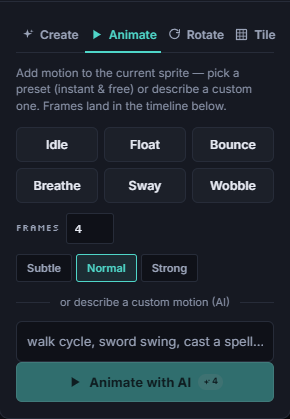
Start with a 4-frame idle, get comfortable with onion skinning and timing, and the walk cycle will follow. Open the editor, add a few frames, and watch your sprite come to life.
Make it in SpriteGen, truly free
Hand-draw on a real grid or generate sprites with AI. No sign-up needed to draw and export — a free account adds 10 AI credits a month.