How to Generate Pixel Art with AI (the Right Way)
Most AI image tools produce blurry pixel art that breaks on the grid. Here's how to generate true, game-ready pixel art with AI — exact dimensions, a locked palette, and conversational edits.
AI is great at imagining a sprite and terrible at the part that makes pixel art pixel art: exact dimensions and a clean grid. If you've tried a generic image generator, you've seen the result — something that looks pixel-ish from a distance but is actually a blurry, anti-aliased image with thousands of colors, impossible to edit pixel by pixel. Here's how to get real, usable pixel art instead.
Why most "AI pixel art" isn't pixel art
General image models (Stable Diffusion, Midjourney, DALL·E) are diffusion models. They paint with continuous color and have no concept of a grid. Tools built on them generate a large fuzzy image and then downscale and snap it to a grid. That approach has three problems:
- Wrong dimensions — you can't reliably get an exact 16×16; you get "approximately pixel-sized" blocks.
- Too many colors — anti-aliasing leaves hundreds of near-duplicate colors and "mixels" (mixed pixels straddling the grid).
- No real editing — because the output is a flat image, you can't ask it to change one specific thing without re-rolling the whole picture.
Generate on a real grid instead
The fix is to treat the image as a grid of palette indices from the start, not as raster pixels. When the canvas itself is a fixed-size grid with a locked palette, the AI's output is exact pixel art by construction:
- Ask for 16×16 and you get exactly 16×16.
- Every cell holds one palette color — no anti-aliasing, no mixels.
- The sprite is a document you can mutate, not a flat image.
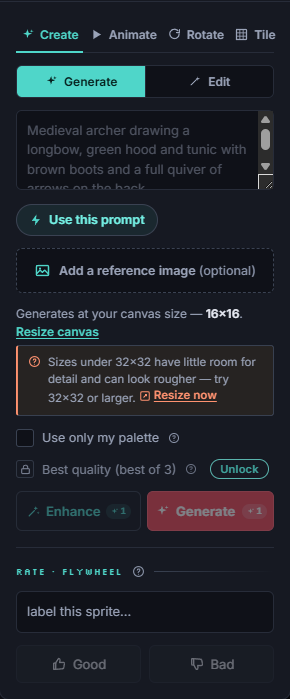
This is the approach SpriteGen takes. You set the dimensions, the AI draws within that grid, and what you get is true pixel art you can immediately hand-edit.
Write a good sprite prompt
A few habits produce much better results:
- Name the subject and the size. "A green slime, 16×16" beats "slime."
- Describe the silhouette and key features, not the rendering. "A knight facing forward, tall helmet, blue cloak" gives the model shapes to work with.
- Mention the view — front-facing, top-down, side view, isometric.
- Keep the palette in mind. You can tell the tool to draw using only your existing palette for project-wide consistency, or let it add a few subject-specific colors.
Edit conversationally instead of re-rolling
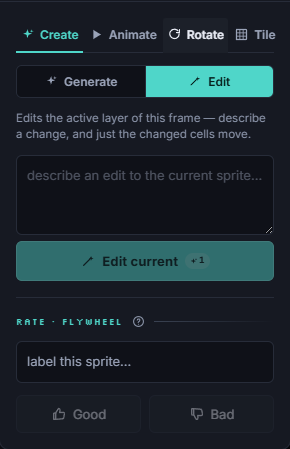
The biggest advantage of generating on a real grid is surgical editing. Instead of regenerating and hoping, you describe a change to the current sprite:
"Make the helmet taller." · "Recolor the cloak to red." · "Add a glowing outline."
Only the cells you asked about change — something diffusion tools structurally cannot do, because they have no grid to edit. This is the difference between fighting the model and actually directing it.
Then refine by hand
AI gets you 80% of the way in seconds; you finish the last 20% with the pencil. Because the output is already true pixel art on the grid, hand-editing is seamless — fix a stray pixel, tweak a highlight, clean an edge. The AI and your tools write to the same document.
Try it
Open SpriteGen, pick a size, and describe a sprite. You get exact pixel art on a real grid, conversational edits, and one-click export to PNG, spritesheets, and game engines. The editor is free, with 10 AI credits a month to experiment.
Make it in SpriteGen, truly free
Hand-draw on a real grid or generate sprites with AI. No sign-up needed to draw and export — a free account adds 10 AI credits a month.