How to Make a Pixel Art Sprite (Step-by-Step)
A beginner-friendly, step-by-step guide to making your first pixel art sprite — choosing a canvas size, building a palette, blocking shapes, shading, and exporting for your game.
Pixel art looks simple, but a good sprite is the result of a few deliberate decisions: the canvas size, a tight palette, clean shapes, and readable shading. This guide walks through making your first sprite from a blank grid to a game-ready export — the same workflow whether you draw it by hand or generate a starting point with AI.
1. Pick the right canvas size
Resolution is the single most important choice in pixel art. Smaller grids force you to suggest detail with very few pixels, which is what gives pixel art its charm.
- 16×16 — classic for items, icons, and small characters. Start here.
- 32×32 — room for a character with a face, weapon, and some shading.
- 64×64 — detailed characters, bosses, and portraits.
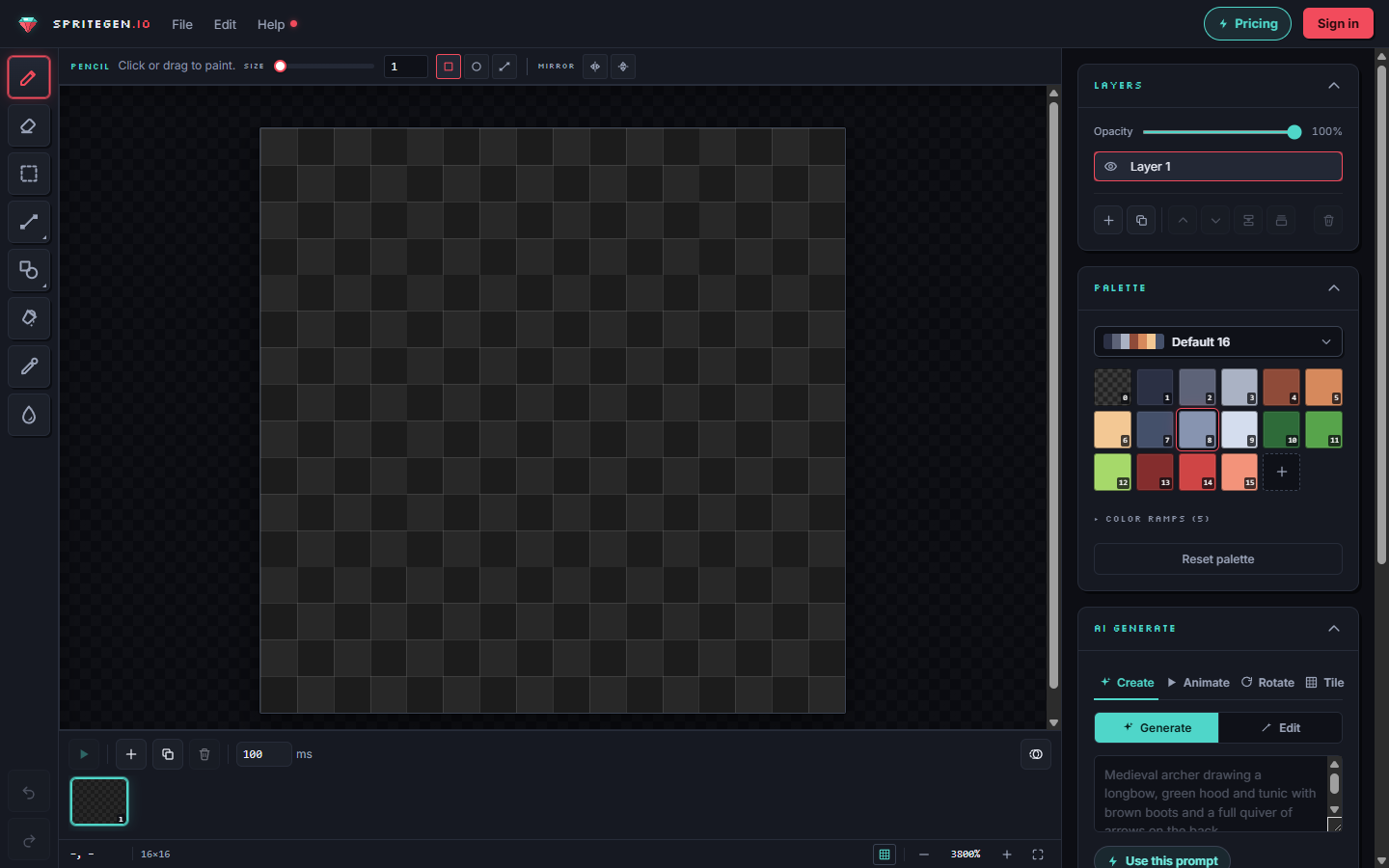
A real pixel-art tool keeps this size fixed: every pixel is a cell on a grid, so a 16×16 sprite is exactly 16×16 — no blur, no half-pixels. In SpriteGen you set the size up front and it never changes underneath you.
2. Build a small palette
Beginners reach for too many colors. A strong sprite usually uses 4–16 colors total. Group them into ramps — a sequence from a dark shadow to a bright highlight for each material (skin, metal, cloth).
A tight palette ties a sprite together. Three or four colors per material, with a clear darkest and lightest, beats a rainbow of near-duplicates.
3. Block in the silhouette
Start with one mid-tone color and draw the silhouette — the solid shape of your subject. Ignore detail entirely. If the silhouette reads clearly at a glance (a sword looks like a sword, a slime looks like a slime), the rest will follow. Pixel art lives and dies on a readable outline.
4. Add the base colors
Fill the silhouette with the flat, mid-tone color of each region. No shading yet — just the local color of skin, armor, hair, and so on. This is your foundation.
5. Shade with light in mind
Pick a single light direction (top-left is the classic default) and stay consistent. Add your darker ramp colors on the side away from the light, and the lighter ramp colors where light hits. Two tips that make shading read well:
- Avoid pillow shading — don't just outline every shape with a darker tone. Shade as if real light is hitting the form.
- Use hue shifts — shadows aren't just darker, they lean cooler (toward blue/purple); highlights lean warmer. This is what separates flat-looking sprites from polished ones.
6. Clean the edges (anti-aliasing by hand)
In true pixel art you control every pixel, so any smoothing is done manually — placing a single intermediate-tone pixel on a hard stair-step to soften it. Don't overdo it; jaggies are part of the look. Never let a tool auto-blur your edges, or you'll get "mixels" that break the grid.
7. Export for your game
When the sprite is done, export it cleanly:
- PNG with transparency for a single sprite (scale it up by whole numbers — 2×, 4× — so it stays crisp).
- Spritesheet if you have multiple frames or directions packed into one image.
- Engine-ready formats for Aseprite, Unity, or Godot so it drops straight into your project.
Make it faster with AI
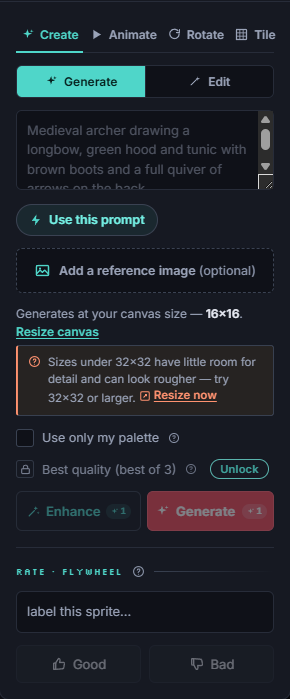
You don't have to start from a blank grid. In SpriteGen you can describe a sprite ("a red potion, 16×16") and the AI draws true pixel art directly on the grid, which you then refine by hand — or make surgical edits by asking ("make the cork taller"). Because the canvas is a real grid of palette indices, the AI's output is exact pixel art, not an upscaled blur.
The best way to learn is to make a lot of small sprites. Open the editor, pick 16×16, and draw a potion or a coin — you'll have the workflow down in an afternoon.
Make it in SpriteGen, truly free
Hand-draw on a real grid or generate sprites with AI. No sign-up needed to draw and export — a free account adds 10 AI credits a month.