How to Make a 16x16 Pixel Art Sprite
A focused, step-by-step guide to making a 16x16 pixel art sprite, from setting an exact 16 by 16 grid to palette, silhouette, shading, and a clean game-ready export.
16x16 is the friendliest size in pixel art. It is small enough to finish in minutes, big enough to read as a real object, and it is the classic size for items, icons, and tiny characters. This guide makes one good 16 by 16 sprite from a blank grid to a clean export.
Why 16x16 is the best size to start
With only 256 cells, every pixel counts. That sounds limiting, but the constraint is exactly what teaches you pixel art: you cannot hide behind detail, so you learn to suggest a shape with a handful of pixels. A coin, a potion, a key, a slime, or a small hero all work beautifully at 16x16.
The one rule that matters: the canvas must stay exactly 16 by 16. In a true pixel-art tool the size is fixed when you create the canvas, so a 16x16 sprite is exactly 16x16 cells, with no blur and no half-pixels. In SpriteGen you set 16x16 up front and it never changes underneath you.
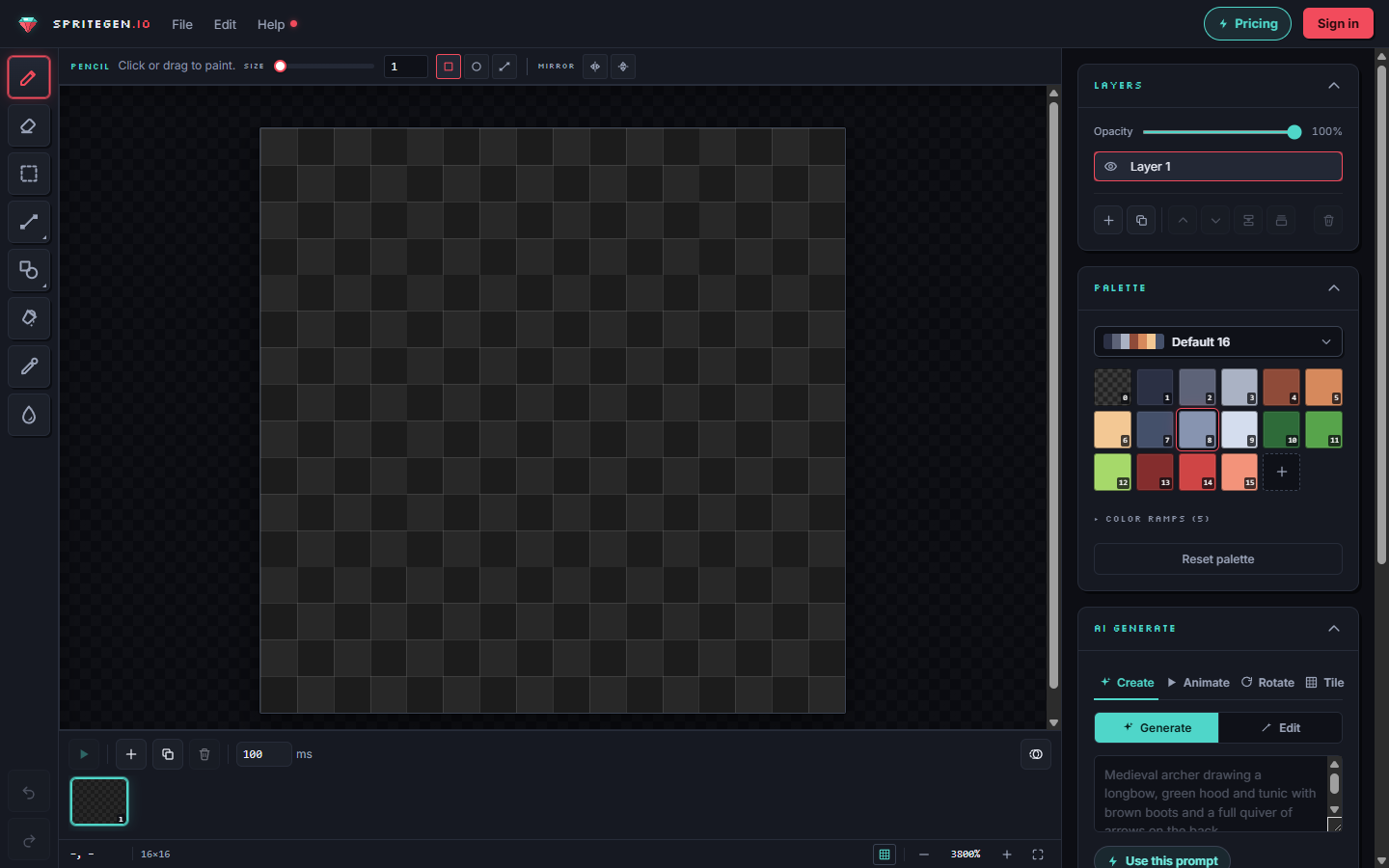
1. Create a 16x16 canvas
Open the editor and set both width and height to 16. Turn on the grid overlay if you have one, so you can count cells while you work.
2. Keep the palette tiny
At this size, four to eight colors is plenty. Pick one or two materials and give each a short ramp: a dark shadow, a mid base, and a light highlight. A tight palette is what makes a small sprite feel intentional instead of noisy.
3. Draw the silhouette first
Block the solid shape in a single mid-tone. Squint at it. If a key looks like a key and a slime looks like a slime at a glance, the silhouette is working. On a 16x16 grid the outline is most of the battle, so spend your time here.
4. Fill the base colors
Drop the flat mid-tone of each region inside the silhouette. No shading yet, just the local color. This is your foundation to shade on top of.
5. Shade with one light direction
Pick a light direction (top-left is the classic default) and stay consistent. Add the darker ramp color away from the light and the lighter ramp color where light hits. At 16x16 you often need only one shadow tone and one highlight tone, placed on a few pixels, to give the sprite form.
6. Clean the edges by hand
Any smoothing in true pixel art is done by hand, one pixel at a time. Drop a single mid-tone pixel on a harsh stair-step to soften it, but do not overdo it. Never let a tool auto-blur the edges, or you get mixels that break the grid.
7. Export
Export a transparent PNG and scale it up by whole numbers (2x, 4x, 8x) so it stays crisp. If you plan to animate it, keep the source so you can add frames later.
Shortcut: generate a 16x16 sprite with AI
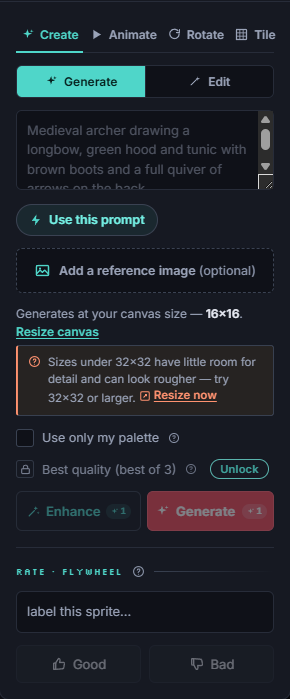
You do not have to start from an empty grid. In SpriteGen you can type a prompt like "a red potion, 16x16" and the AI draws true pixel art directly on the 16 by 16 grid, on your palette. Then refine it by hand, or ask for a single change like "make the cork taller" and only those cells move.
Want more on the full workflow? Read how to make a pixel art sprite and the pixel art sizes guide. Then open the editor, set 16x16, and make a coin.
Make it in SpriteGen, truly free
Hand-draw on a real grid or generate sprites with AI. No sign-up needed to draw and export — a free account adds 10 AI credits a month.