SpriteGen vs PixelLab: AI Pixel Art Compared
An honest comparison of SpriteGen and PixelLab for AI pixel art, focused on the core difference between drawing on a real grid and generating images, plus editing, animation, and workflow.
PixelLab and SpriteGen are both AI pixel-art tools, so they get compared a lot. The most useful way to tell them apart is not a feature checklist, it is how each one actually makes the image. That single architectural choice shapes everything else. Here is an honest comparison. Features and pricing on both sides change, so check each tool's own site for the latest.
The core difference
Most AI pixel-art generators are image models: they generate a picture and present it as pixel art. SpriteGen takes a different approach. Its canvas is a real, fixed-size grid of palette indices, and the AI draws inside that grid. The output is true pixel art by construction:
- Ask for 16x16 and it is exactly 16x16, not an approximate size.
- Every cell holds one locked palette color, so there is no anti-aliasing and no near-duplicate colors.
- Because the image is a grid of cells, you can change one thing without re-rolling the whole sprite.
If you mainly want to generate finished-looking pixel art images quickly, an image-based tool can be great. If you want output that behaves like a real, editable sprite, the grid-native approach is the difference.
Editing after generation
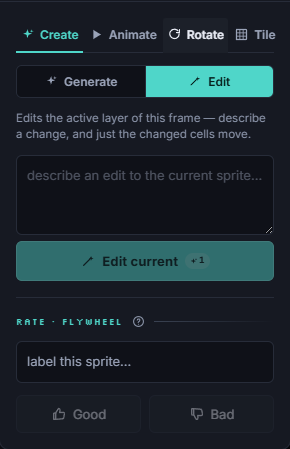
This is where the grid matters most. In SpriteGen you can make conversational edits ("make the helmet taller", "recolor the cloak") and only the cells you asked about change, because the AI writes to the same grid as your hand tools. You can also pick up the pencil and fix a single pixel. Image-based tools generally regenerate to make changes, which can alter parts you wanted to keep.
Hand editing
SpriteGen is a full editor as well as a generator: pencil, eraser, shapes, fill, eyedropper, selection, a right-click radial tool wheel, layers with per-layer opacity, and animation frames. So you are never locked into whatever the AI produced; the generated sprite is just a starting point you own.
Animation
SpriteGen includes animation with motion presets and a hand-built frame timeline with onion-skinning, plus AI-assisted frames. If animation is central to your project, check how each tool handles frames, timing, and export and pick the workflow that fits.
Platform and price
SpriteGen runs in any browser with nothing to install, and it is free to start: the editor and PNG export are free, with monthly AI credits, and paid plans add more AI usage and pro export. For PixelLab's current platform support and pricing, see their site, since those details move.
Export
SpriteGen exports PNG, animated GIF, spritesheets, native Aseprite files, and engine-ready formats for Unity and Godot, so sprites drop into a game pipeline. Confirm the export formats you need on either tool before committing.
Bottom line
Both are AI pixel-art tools, but they start from opposite ends. PixelLab and other image-based generators are built around generating pixel-art pictures. SpriteGen is built around a real grid, so its output is exact, editable pixel art you can refine pixel by pixel or by asking. If editability and exact sizes matter to you, try SpriteGen and generate a sprite, then change one thing and watch only that move.
Make it in SpriteGen, truly free
Hand-draw on a real grid or generate sprites with AI. No sign-up needed to draw and export — a free account adds 10 AI credits a month.